
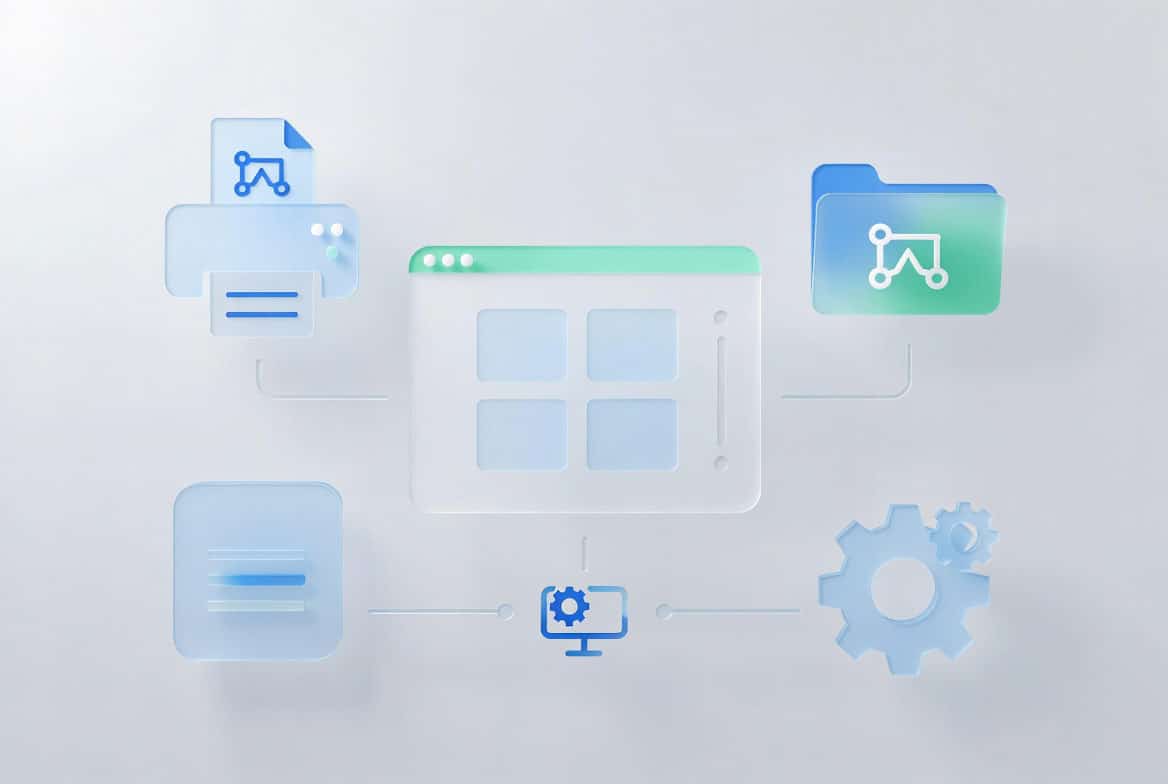
In non-persistent or pooled VDI and RDS environments, four configuration areas consistently cause friction. This practical guide shows you how to configure printers, mappings, menus and registries so they work reliably at every logon.
These items must be correct every time a user logs on. However, profile resets, temporary profiles, or inconsistent Group Policy application break them very often.
Because these settings so often fail in non-persistent environments, we created this practical guide. It shows you how to configure printers, drive mappings, menus, and registry settings using proven methods, while helping you avoid the most common pitfalls.
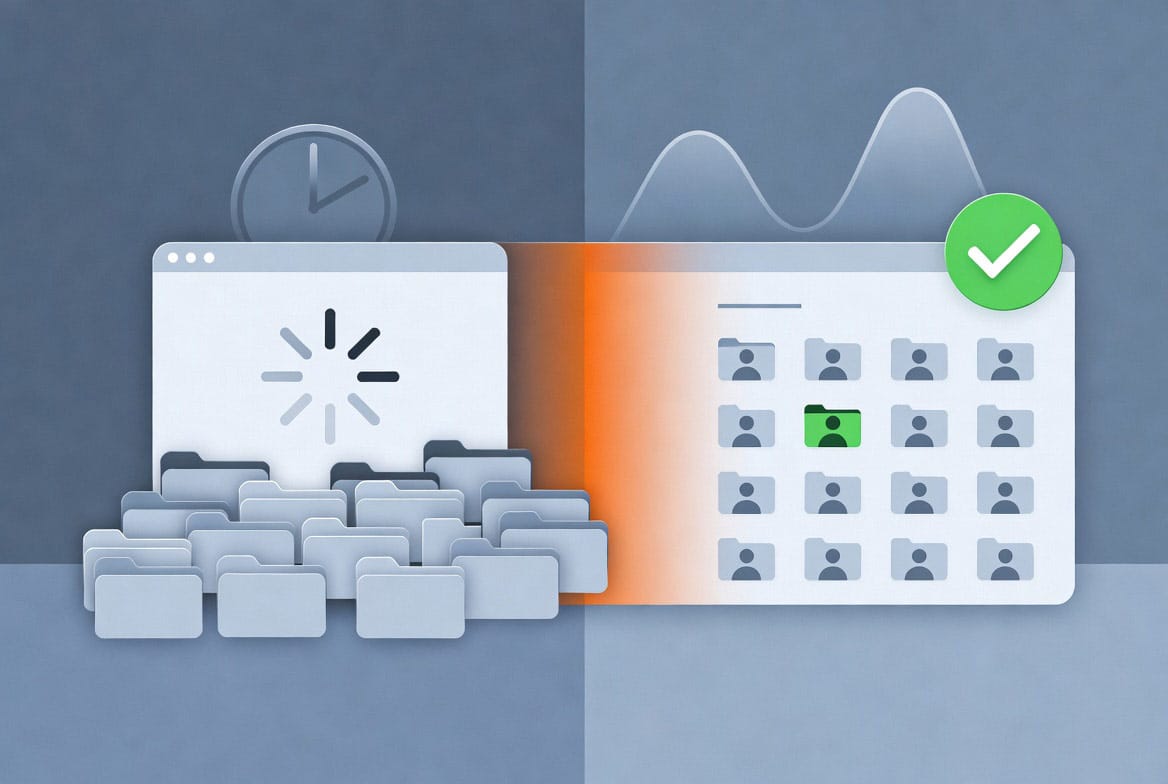
In a traditional desktop, users can set printers, map drives, and customize their Start menu once. In contrast, non-persistent VDI sessions are frequently destroyed at logoff. As a result, everything must be reapplied reliably and quickly at the next logon.
Common problems include:
Traditional approaches
Best practices
Limitations
However, GPP and scripts can still add noticeable time to the logon process. This becomes especially problematic when many printers are involved or when the print server is remote. As a result, logon performance can suffer even if the configuration itself is correct.
Traditional approaches
Best practices
Common issues
Users expect a consistent Start menu or desktop shortcuts regardless of which session host they land on.
Traditional approaches
Best practices
Pain points
Shortcuts stored in the profile are lost when the profile is reset. In addition, shortcuts applied via GPO can be slow to appear or inconsistently ordered. As a result, users often experience a fragmented and unreliable Start menu experience.
Many VDI optimizations and application configurations live in the registry (HKCU).
Typical examples:
Traditional approaches
Best practices
In addition, getting started quickly matters a great deal to administrators. For this reason, VDI Profiler includes a free package of 19 tested registry files created by system integrators who work with VDI every day. These files cover common optimizations and can be imported at logon with any tool that supports .reg files—whether you use scripts, Group Policy Preferences, or a dedicated environment manager.
Included files:
These files are a practical starting point for reducing visual noise, improving Explorer behaviour, and applying sensible defaults in multi-session environments.
The most consistent and maintainable approach is to stop relying on the user profile as the source of truth for printers, drives, menus and registry settings. Instead, define these items centrally and apply them cleanly at every logon.
This pattern offers several advantages:
Tools designed for this model inject the required settings (printers, drive mappings, application menus, registry keys, ODBC connections, scripts, etc.) quickly and with very low overhead.
| Area | Traditional Method | Common Pain Point | Cleaner Approach |
|---|---|---|---|
| Printers | GPP / Scripts | Delay & inconsistency | Central definition + logon apply |
| Drive mappings | GPP / net use | Timeouts & conflicts | Central definition + logon apply |
| Application menus | Profile shortcuts / GPP | Lost after reset | Central menu definition |
| Registry settings | GPP / .reg scripts | Timing & maintenance | Central registry injection |
By treating these four areas as logon-time configuration rather than profile data, most environments achieve faster logons, fewer support tickets, and much simpler ongoing management. Learning how to configure printers, mappings, menus and registries this way is one of the most effective improvements you can make in non-persistent VDI.
If you would like a lightweight tool that was built specifically to manage printers, drive mappings, application menus, registry settings and more from a single console, VDI Profiler includes both the free registry package above and a simple way to apply all of these settings consistently at every logon.